
Preview and publishing
Preview
Test your survey exactly as a respondent sees it.
Select Preview in the editor header to open the respondent experience in a new tab. You can answer questions, follow branches and see piping resolve using your test answers before publishing.
Nothing is recorded in preview
Preview answers are temporary. They do not create stored responses or appear in analytics. Use the published link only when you intend to collect a real response.
- Open Preview to try the respondent experience without collecting a response.
Run a complete first pass
Start at the welcome screen
Read the introduction as someone seeing the survey for the first time. Check that it explains what to do and uses the intended button wording.Answer normally
Complete one realistic route from start to finish. Read each question, its instructions and any text that includes an earlier answer.Check the ending
Confirm you reach the right thank-you screen. Preview displays a reminder that no response was recorded.Repeat a different route
Use Start over at the end to try another set of answers. After editing the survey, reopen or reload Preview to test the saved version.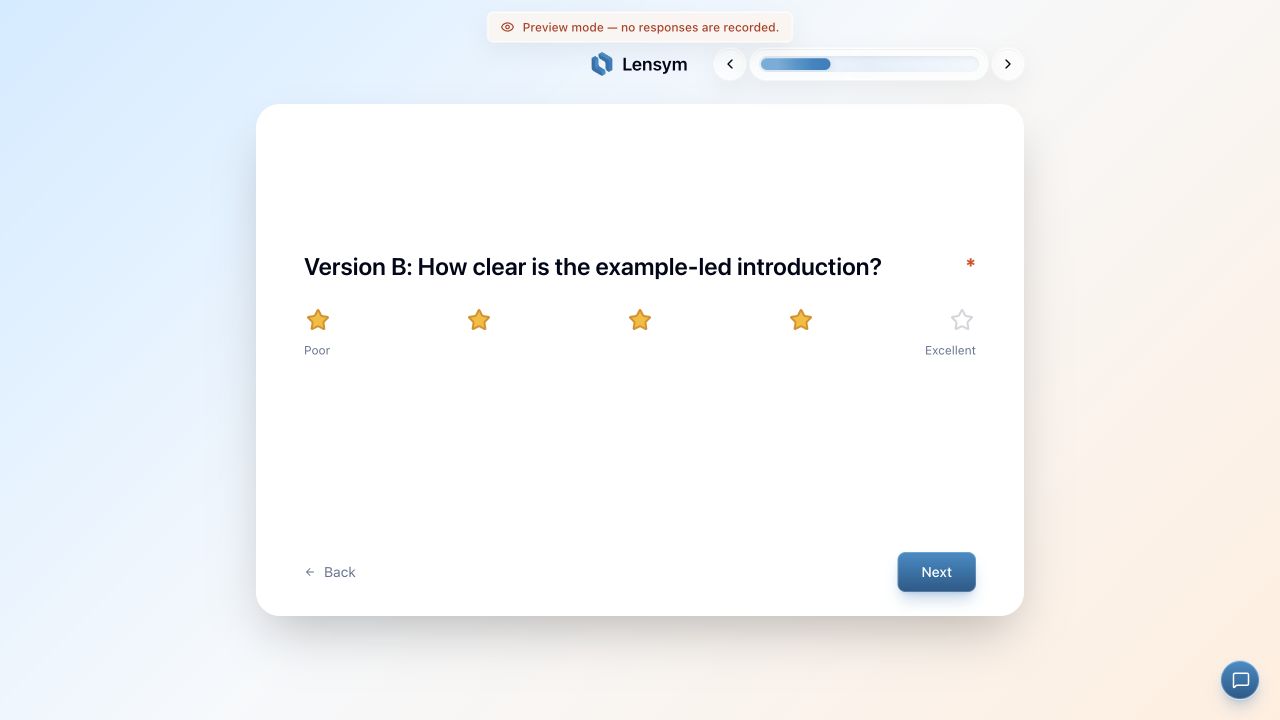
Test what could go wrong
| Test | What to look for |
|---|---|
| Leave a required answer empty | Next should show a useful validation message |
| Leave an optional answer empty | The survey should continue and later wording should still make sense |
| Enter a value at each numeric limit | The minimum and maximum should behave as intended |
| Take each branch | Relevant questions appear, irrelevant ones are bypassed, and the route reaches End |
| Use Back and change an answer | Later routing and piped wording should reflect the change |
| Try a long answer or narrow screen | Text and controls remain readable and usable |
For a score, test low, middle and high values. For conditional wording, test just below, exactly at and just above the threshold. Seeing one correct result is not enough to check the other cases.
Check randomized paths separately
A new run may receive either version; it does not have to alternate every time. Going Back within the same response is not a new draw. Preview's Balanced counts are temporary and do not measure how published responses have been assigned. See testing splits.
What Preview does not prove
Preview checks the respondent flow, not delivery of invitations, live response storage or export contents. Publishing also runs a separate validation check. A technically valid survey can still have confusing wording or an unintended route.
Because publishing locks the survey, finish your route checks before confirming publication. Keep a short list of the answers used for each test so you can repeat the affected cases after a change.